
Salesforce Roles vs Profiles (and Permission Sets): The Complete 2026 Guide
If you’ve ever found yourself staring at Salesforce Setup, wondering whether you should adjust a profile, move someone in the role hierarchy, or create a permission set, you’re not alone. Many admins, especially those in fast-growing businesses that adopted Salesforce between 2020 and 2026, struggle to understand where one access mechanism ends and another begins.
Here’s the essential distinction to keep in mind: profiles determine what users can do, roles determine what records they can see, and permission sets add flexible extra access on top. These two concepts, along with permission sets, work together rather than independently, and mixing them up creates security gaps, compliance headaches, and frustrated users.
This article was last updated in February 2026 and reflects the current Salesforce security model, including Permission Set Groups. We’ve written it specifically for Salesforce admins, IT managers and CRM owners who need a scalable, audit-ready model. Clear access control isn’t just a theory; it’s essential for GDPR compliance, ISO 27001 certification, and realistic day-to-day operations.
By the end of this guide, you’ll understand how to design a security model that scales from 10 to 500+ users, avoid common misconfigurations, and build governance practices that satisfy auditors and protect your data.
Salesforce’s Layered Security Model: The Big Picture
Salesforce security works in layers, think of it like a building with multiple floors, each controlling a different aspect of what users can access and do. Before diving into roles and profiles in detail, you need to understand how these layers stack together.
The model starts with Organisation-Wide Defaults (OWD) as your baseline, then adds the role hierarchy, sharing mechanisms, and finally profiles and permission sets. Each layer can only open up access from the layer below; you can’t use a higher layer to restrict what a lower layer has already granted.
Here’s how the main layers work:
Organisation-Wide Defaults (OWD): The baseline record visibility for each object. For example, Accounts might be set to “Private”, Opportunities to “Private”, and Cases to “Public Read/Write”. This determines the most restrictive access before any other rules apply.
Role hierarchy: Opens up record visibility above the OWD baseline. Users higher in the hierarchy automatically see records owned by those below them.
Sharing rules, manual sharing and teams: Handle “sideways” or cross-team visibility when users need to see records outside their direct reporting line.
Profiles and permission sets: Control object-level permissions (what actions users can perform), field-level security, system permissions, and app access.
Field-level security: Hides or makes read-only specific fields, regardless of whether the user can see the record itself.
The critical principle here: start with the most restrictive OWD settings first, then carefully open up visibility where needed. Lock everything down by default, then grant specific roles.

Profiles in Salesforce: Baseline “What Users Can Do”
Every user in your Salesforce org must have exactly one profile, no more, no less. Think of the profile as the user’s baseline licence, determining what they’re fundamentally allowed to do in the system before any additional access is layered on.
Profiles control several critical areas:
Object-level permissions (CRED): Create, Read, Edit, Delete on standard objects like Account, Opportunity, and Case, as well as custom objects your org has built.
Field-level security: Which fields are visible, read-only, or completely hidden on each object.
App, tab and record type access: Whether users see the Sales app vs Service app, which tabs appear in their navigation, and which record types they can create or access.
System and administrative permissions: High-level capabilities like “Modify All Data”, “Create Users”, “API Enabled”, and login hours restrictions.
Page layouts: The layout a user sees when viewing or editing a record.
Here’s a concrete example of how profiles define different users’ access:
“Sales User – US” profile: Read/write on Leads and Opportunities; read-only on Cases; no access to HR custom objects.
“Service User – US” profile: Full CRED on Cases; read-only on Opportunities; no access to Marketing Campaign objects.
Salesforce offers several standard profiles out of the box: “Standard User”, “System Administrator”, “Chatter Free User”, which serve most baseline needs. However, modern best practice is to keep a small number of restrictive, generic profiles (such as “Minimum Access – Sales” or “Minimum Access – Service”) rather than creating dozens of variations.
Common mistakes with profiles include:
Profile sprawl: Cloning dozens of slightly different profiles (“Sales User – London”, “Sales User – North”, “Sales User – London New”) until you have 50+ profiles that are nearly impossible to manage or audit.
Permission creep: Adding more and more permissions to existing profiles to “quickly fix” access issues instead of using permission sets for the additional access.
Using profiles for granular control: Attempting to handle every permission variation through profiles rather than keeping profiles lean and using permission sets for nuance.
Roles in Salesforce: Record-Level Visibility and the Role Hierarchy
While profiles control what users can do, Salesforce roles control which records users can see. Roles define a user’s position in your organisation’s hierarchy and determine their data access based on ownership and reporting structure.
Here’s the key relationship: Organisation-Wide Defaults set the baseline (often “Private” for sensitive objects like Opportunities and Cases), and then the user role hierarchy opens up record visibility from there. A sales manager positioned higher in the hierarchy automatically gains visibility to records owned by the sales reps beneath them.
The role hierarchy has specific behaviours you need to understand:
Upward visibility: Users higher in the tree see data owned by users below them. The “Grant Access Using Hierarchies” checkbox in sharing settings controls this behaviour.
No automatic sideways visibility: Peer sales teams do not see each other’s records unless you configure sharing rules, account teams, or manual sharing.
One role per user: Unlike permission sets, each user can occupy only one role in the role hierarchy.
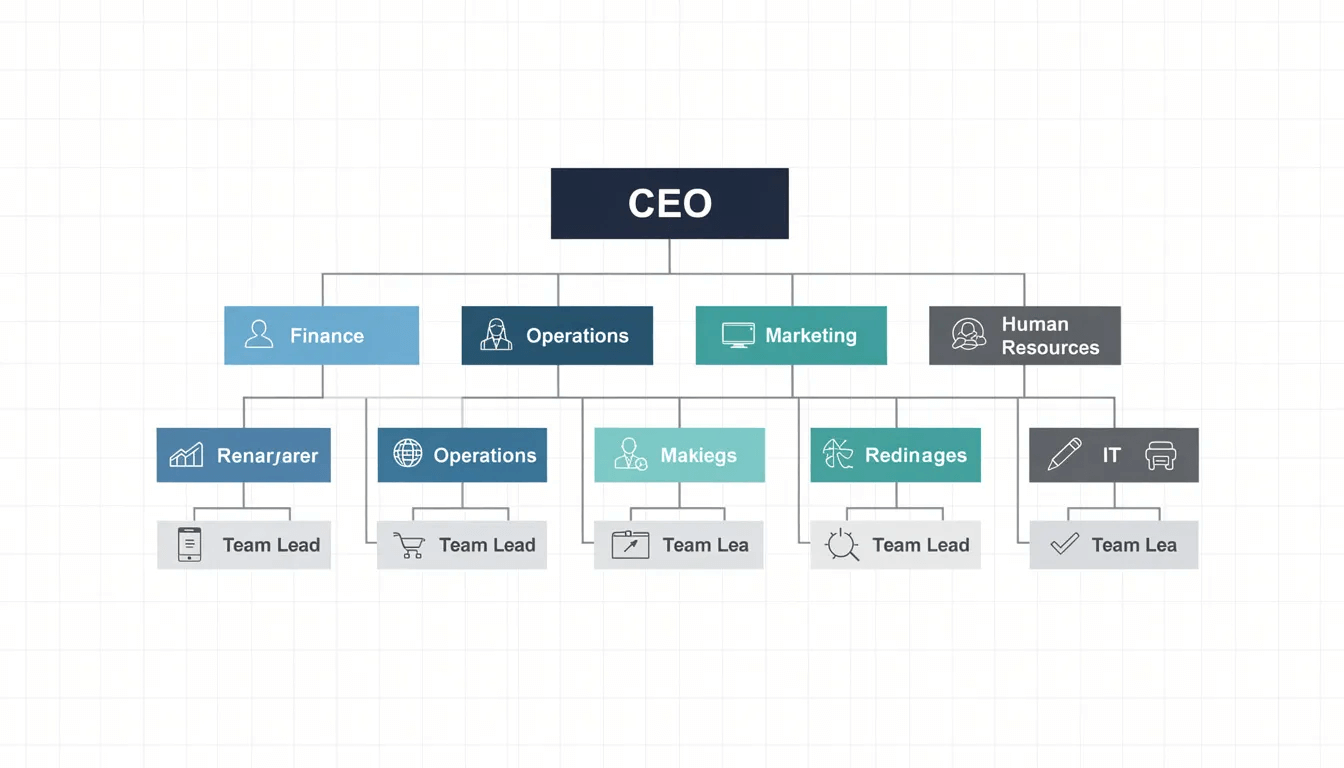
Here’s an example hierarchy for a mid-sized business:
CEO (sees all records across the org)
VP Sales (sees all sales records)
Regional Sales Manager – North (sees records owned by North sales reps)
Sales Rep – North (sees only their own records)
Regional Sales Manager – South (sees records owned by South sales reps)
Sales Rep – South (sees only their own records)
Regional Sales Manager – Midlands (sees records owned by Midlands sales reps)
Sales Rep – Midlands (sees only their own records)
Service Manager (sees all service records)
Service Agent (sees only their own records)
With Private OWD on Opportunities, a Sales Rep – North can only see opportunities they personally own. Their Regional Sales Manager can see all opportunities owned by their direct reports. But without explicit sharing rules, the Regional Sales Manager – North cannot see opportunities owned by reps in the South or Midlands teams.
Sharing rules, account teams, opportunity teams and manual sharing extend visibility beyond the strict hierarchy. For example, you might create a sharing rule granting the Service team read access to high-value Accounts owned by Sales to improve customer context.
Roles are technically optional; a user can exist without a role, in which case they see only records they own and what’s shared via non-role mechanisms. However, in most production organisations, all active users are assigned a role to enable predictable reporting and data visibility.
Permission Sets (and Groups): Flexible Extra Access on Top of Profiles
Permission sets solve a fundamental problem: how do you grant additional access to certain users without creating endless profile variations? The answer is simple: permission sets add extra permissions to a user without changing their profile. Users can have many permission sets, but still only exactly one profile.
Typical use cases for permission sets include:
Temporary access: Piloting a new custom object or app feature with a subset of sales managers before wider rollout.
Cross-functional duties: A sales rep who also needs to manage events or requires limited Service Console access.
Compliance-sensitive access: Capabilities like “View Encrypted Data”, “Export Reports”, or “API Enabled” that only specific users should have.
Permission sets can control:
Additional object and field permissions beyond the user’s profile
App and tab visibility
Record types that the user can access
System permissions like “Manage Dashboards in Public Folders”
Permission Set Groups take this further by bundling multiple permission sets into a single assignable package. For example, you might create a “Sales Manager – Core Access” group containing permission sets for Reporting Extended, Approvals, and Territory Management. Groups also support “muting” permissions, removing specific rights from a set within the group when needed.
Modern best practice is permission-set-led design:
Profiles = minimal baseline (just enough to log in and perform basic functions)
Permission sets & groups = all additional, task-based rights
This mirrors how a WordPress agency would give all content users a standard “Editor” role, then extend access with granular capabilities for shop management, analytics, or specific plugins.
Best practices for naming and structuring permission sets:
Use clear, descriptive names: “Lead Conversion”, “Campaign Management”, “Data Loader Access”
Prefix with function or team: “Sales – CPQ Access”, “Finance – Read Invoice Data”
Create Permission Set Groups for common job functions: “Sales Manager Full”, “Service Agent Enhanced”
Document what each permission set grants and who should receive it
Roles vs Profiles vs Permission Sets: Direct Comparison
The mnemonic to remember is: “Roles see, Profiles do, Permission Sets add.” This captures the essential difference between these three tools in your Salesforce security arsenal.
| Aspect | Roles | Profiles | Permission Sets |
|---|---|---|---|
| Primary purpose | Control which records a user can see | Control what users can do (objects, fields, system) | Grant incremental permissions on top of profile |
| Scope | Record-level visibility | Object, field, app, system level | Object, field, app, system level |
| Mandatory? | Optional (but recommended) | Mandatory – every user needs exactly one profile | Optional |
| Number per user | One | One | Many (users can have multiple permission sets) |
| Typical examples | “Sales Rep – South”, “Service Manager – UK” | “Minimum Access – Sales”, “System Administrator” | “Export Reports”, “Finance Read Access”, “Marketing Campaign Management” |
| Good usage | Mirror organisational reporting structure | Minimal baseline permissions by user type | Task-based, temporary, or cross-functional access |
| Bad usage | Placing users in higher roles just to “fix” visibility | Creating dozens of similar profiles for minor variations | Leaving unused permission sets cluttering the org |
In a well-designed Salesforce org, you’ll typically see:
Few profiles: Often 3–6 for non-admin business users, focused on minimal baseline access
Clear, business-aligned role hierarchy: Mirroring your actual management structure
Dozens or hundreds of well-named permission sets and groups: Reflecting specific tasks and responsibilities
The key insight is that these tools work together. A user might have the “Minimum Access – Sales” profile, sit in the “Sales Rep – Midlands” role, and have permission sets for “CPQ Access” and “Quote Document Generation” assigned. All three layers combine to create their complete access profile.

How They Work Together: Real-World Scenarios
Nothing in Salesforce security works in isolation. You must layer roles, profiles, permission sets, OWD and sharing rules together for each business scenario. Let’s walk through three concrete examples that demonstrate this interplay.
New User Onboarding Example – February 2026
A new Sales Executive joins your Midlands team. Here’s the onboarding process:
Assign the profile: They receive “Minimum Access – Sales”, which grants basic CRED on Leads and Opportunities, read access on Accounts, and no access to HR or Finance objects.
Place in the role hierarchy: They’re positioned under “Sales Rep – Midlands”, which means they can only see opportunities they personally own (assuming Private OWD on Opportunities).
Assign permission sets: They receive “CPQ Access”, “Quote Document Generation”, and “Opportunity Team Management” permission sets for their specific job functions.
After these steps, the user can create and edit their own opportunities, generate quotes, and participate in opportunity teams, but they cannot see opportunities owned by other users in different regions, access financial data, or modify system settings.
Common misconfiguration: An admin gives a new user a broader profile, such as “Sales Manager,” instead of adjusting their role or adding permission sets, accidentally granting them edit access to all sales data.
Restricting Access to Financial Data
Your organisation has custom objects for financial data: “Invoicec” and “Paymentc”. Here’s how access control works:
OWD for both objects is set to Private no one can see records they don’t own by default.
Only users with the “Finance – Read” and “Finance – Edit” permission sets can access these objects; all the base sales profiles have zero access.
The role hierarchy ensures that the Finance Manager (positioned above the Finance Analysts) can see all finance records owned by their team.
Sales users see read-only summary information on Accounts through formula fields that pull from Invoices; they never access the raw invoice data directly.
Common misconfiguration: Setting Invoice__c to “Public Read/Write” because someone complained about access issues, then relying on user behaviour instead of technical controls. This creates GDPR exposure and fails the “least privilege” principle.
Departmental Restructuring – Mid-2025
Your company consolidates “Sales North” and “Sales Scotland” into a single “Sales North & Scotland” team. Here’s the adjustment process:
Merge roles: Create a new “Regional Sales Manager – North & Scotland” role and re-parent the existing sales rep roles beneath it.
Move users: Transfer affected managers to the new role; sales reps remain in their existing positions but now report up to the consolidated manager role.
Update Permission Set Groups: Adjust the “Sales Manager – North Cluster” group to include any Scotland-specific permission sets.
Validate visibility: Confirm that the new Regional Manager can see all records previously visible to both North and Scotland managers, and that reps’ visibility remains appropriately scoped.
Common misconfiguration: temporarily adding the Scotland manager to a senior role to “fix” visibility during the transition, accidentally exposing them to sensitive data from other business units. Or cloning the North manager’s profile instead of simply adjusting role positions.

Common Misconfigurations, Risks and “Gotchas”
Let’s look at what actually goes wrong in real Salesforce orgs, not theoretical risks, but the recurring problems we see in organisations that have grown their Salesforce implementation over the years.
Profile Sprawl
The problem: Dozens or hundreds of almost identical profiles created between 2014–2025, each with minor variations. You might have “Sales User”, “Sales User – London”, “Sales User – London Events”, “Sales User – London New Starter”.
The risk: Near-impossible to audit who has what access. GDPR compliance becomes a guessing game. New starters receive inconsistent permissions depending on which profile they copy.
The fix: Consolidate to minimum-access profiles and use permission sets for variations. Document what each profile grants and why.
Over-Permissive System Permissions
The problem: Non-admin users with “Modify All Data”, “View All Data”, or “Export Reports” permissions that they don’t need for their job functions.
The risk: Data breaches, mass exports of customer data, and compliance violations. Users with API access who should only work in the UI.
The fix: Audit high-risk permissions quarterly. Move these to dedicated permission sets assigned only to users who genuinely require them.
Misused Role Hierarchy
The problem: Placing users into higher roles solely to “fix” a visibility issue for a particular role or project.
The risk: Unexpected access to sensitive records across regions or business units. A sales manager suddenly sees HR grievance cases because they were moved above the HR team in the hierarchy.
The fix: Use sharing rules for cross-team visibility rather than manipulating hierarchies. Keep the role hierarchy aligned with the actual reporting structure.
OWD Left Too Open
The problem: Setting objects to “Public Read/Write” to avoid access complaints, only to hope users behave appropriately.
The risk: Particular exposure for objects containing personal data or financial information. Fails basic security audits.
The fix: Set sensitive objects (Opportunities, Cases, HR objects, Finance objects) to Private or Public Read Only. Open access is deliberately achieved through sharing rules.
Using Profiles Instead of Permission Sets
The problem: Creating a new profile every time someone asks for additional access, rather than creating a reusable permission set.
The risk: Long cleanup projects are needed years later. Hard to onboard new staff or external partners consistently.
The fix: Adopt a permission-set-led model. Create profiles only for fundamentally different user types, not for permission variations.
Designing a Scalable Access Model: Best Practices
The goal is a security model that scales from 10 to 500+ users without constant firefighting.
Set sensitive objects (Opportunities, Cases, HR custom objects, Finance objects) to Private or Public Read Only.
Only make objects Public Read/Write where truly required for low-risk, collaborative data.
Remember: you can always open access later, but closing it down is disruptive and complex.
Keep Profiles Minimal
Use Salesforce’s “Minimum Access – Salesforce” licence profile as a starting point, where available.
Create a small set of function-based minimum profiles: “Minimum Access – Sales”, “Minimum Access – Service”, “Minimum Access – Marketing”.
Do not embed task-specific permissions into these profiles; that’s what permission sets are for.
Move to Permission-Set-Led Design
Create permission sets for the following functional duties: “Lead Conversion”, “Campaign Management”, “Knowledge Article Publishing”, and “Data Loader Access”.
Group related task permission sets into Permission Set Groups for common job roles: “Sales Manager Full”, “Service Agent Enhanced”.
This approach mirrors how you’d extend WordPress capabilities for the base role, plus specific feature access.
Design a Logical Role Hierarchy
Mirror your actual management structure, but separate by function (Sales, Service, Marketing, Finance).
Avoid over-deep hierarchies; 4–6 levels are usually sufficient for mid-sized organisations.
Keep geographical breakdowns simple (US, EMEA, Global) to simplify future restructuring.
Apply the Least Privilege Principle
Only assign what’s necessary for the user’s current role, nothing more.
Regularly review users with broad access: system administrators, API integration users,and data migration accounts.
Create roles specifically for integration users with minimal permissions.
Quick Start Blueprint for New Implementations
Define OWD for all objects (start restrictive)
Design your role hierarchy based on the actual reporting structure
Create minimum-access profiles for each major user type
Build a permission set library for task-based access
Create Permission Set Groups for common job functions
Assign users: profile + role + permission set groups
Document everything and establish ongoing governance
Governance, Audit and Compliance Considerations
Anyone who stores customer, financial, or HR data needs proper governance. For businesses, this typically means alignment with GDPR in the UK and EU, and for larger organisations, potentially ISO 27001 or SOC 2 compliance in the US.
Maintain a Documented Access Model
Create diagrams or spreadsheets that capture roles, profiles, and key permission sets, along with their relationships.
Write a clear rationale for why specific teams can see and do specific things. This becomes invaluable during audits.
Update documentation whenever you make structural changes.
Conduct Regular Access Reviews
Schedule quarterly or bi-annual reviews of admin and power-user access.
Validate with business owners that users still require their current level of access.
Check for users who have changed roles but retained old permissions.
Implement Change Control for Security Changes
Use a formal process (change requests, CAB approval) for profile, permission set, role hierarchy and OWD changes.
Track who requested each change, who approved it, and when it was deployed.
Maintain production logs or ticket system records for audit trails.
Use Audit Trails and Reporting
Enable Salesforce’s Setup Audit Trail and field history tracking on sensitive objects.
Build dashboards showing the distribution of profiles, roles, and permission sets across your org.
Track trends, such as the increasing number of users with high-risk permissions.
Govern Integration User Access
Create separate profiles and permission sets specifically for integration users and API access.
Restrict integration accounts to exactly the objects and fields they need, nothing more.
Review integration access quarterly, especially for third-party connected apps.
Clear access structure also simplifies preparing for internal audits, due diligence from potential investors, or clients asking about your security posture. Think of your Salesforce org the way you’d think of your public website or customer portal access and permissions are part of your organisation’s professionalism and trustworthiness.
From Profile-Heavy to Permission-Set-Led: Transition Strategy
If your org was created between 2013 and 2022, you’ve likely accumulated many custom profiles and ad hoc permissions over the years. Transitioning to a cleaner, permission-set-led model requires a structured approach on an ongoing basis.
Step 1: Discovery
Export current profiles, roles, and permission set assignments using reports or tools like Permission Set Helper.
Identify high-risk permissions: “Modify All Data”, “View All Data”, “Author Apex”, “API Enabled”.
Document the number of profiles and their usage across your user base.
Step 2: Rationalisation
Group profiles by similarity, you’ll likely find clusters that can be consolidated.
Define your target minimum-access profiles (aim for 3–6 for business users).
Design your permission set “building blocks” based on actual job functions and tasks.
Step 3: Implementation
Create new minimum-access profiles.
Build permission sets and Permission Set Groups for key job functions.
Pilot migration with one or two teams (e.g., UK Sales, Customer Service) and measure impact.
Gather feedback and adjust before wider rollout.
Step 4: Cleanup and Governance
Deactivate or retire old profiles once users are migrated.
Implement ongoing processes for new permission requests and user onboarding.
Establish regular reviews to prevent a return to profile sprawl.
Practical Tips for the Transition
Work object-by-object: stabilise access to Opportunities first, then Cases, then custom objects.
Schedule changes outside critical trading periods avoid the financial year-end
Communicate clearly with managers and team leads about what will change, when, and why.
Plan for the transition to take several months, not weeks.
Summary and Practical Next Steps
To recap the essential distinctions: profiles define what users can do (object, field, and system permissions), roles define what records they can see (hierarchy on top of OWD), and permission sets provide flexible, task-based extra access. All three must be designed together for secure, scalable Salesforce governance; they’re not independent tools but interconnected layers of your security model.
Here’s your checklist of next actions:
Review your OWD settings: Confirm they align with a “most restrictive” baseline for sensitive objects.
Audit your role hierarchy: Look for unnecessary senior placements or cross-functional mixing that creates unintended visibility.
Count your profiles: Identify opportunities to consolidate similar profiles and reduce sprawl.
Catalogue permission sets and groups: Plan a deliberate move to a permission-set-led model if you’re not already there.
Document your access model: Create clear diagrams and a rationale that satisfy auditors and simplify onboarding.
Establish governance processes: Schedule regular reviews and formal change control for security changes.
Treat access control as an ongoing programme, not a one-off project. Just as ongoing site maintenance and hosting support are essential for WordPress security and performance, your Salesforce access model needs regular attention to stay aligned with your evolving business structure and compliance obligations.
Consider sharing this guide with your Salesforce admin team, data protection officer, or IT leadership. Schedule an internal workshop or review session specifically focused on roles, profiles and permission sets, ensuring your model supports both your current business structure and your compliance requirements for 2026 and beyond.