How to segment data extensions in Salesforce Marketing Cloud using DESelect (SFMC segmentation – part 3/3)​

Segmentation processes can take up a lot of time when you want to create a targeted campaign. In the previous articles, we outlined different options on how to segment in Salesforce Marketing Cloud SFMC) using data filters and SQL queries

However, neither of these methods can be called the ultimate solution for segmentation in SFMC. Why? Because these methods either don’t provide advanced methods or require technical skills that you may lack. What would be the solution? For instance, DESelect – an addon that runs inside SFMC and intuitively combines data on the fly. There is no more need to learn SQL or ask your colleagues to create queries for you. DESelect is an exceptional solution for a top-notch segmentation

A 3-step guide: How to filter on Data Extensions with DESelect

In order to create a targeted campaign with information from various data extensions in DESelect, you should start with creating a new selection (think of this as a “segment”).

DESelect Overview screen where you can create new selections

Step 1. Selection Criteria

Firstly, you have to choose which DEs you want to filter. For instance, you want to create a new segment of prospect contacts linked to their companies. Normally, in order to do that, you would rely on SQL to do this type of segmentation but with the drag-and-drop interface of DESelect, there is no need to write a SQL query for that.

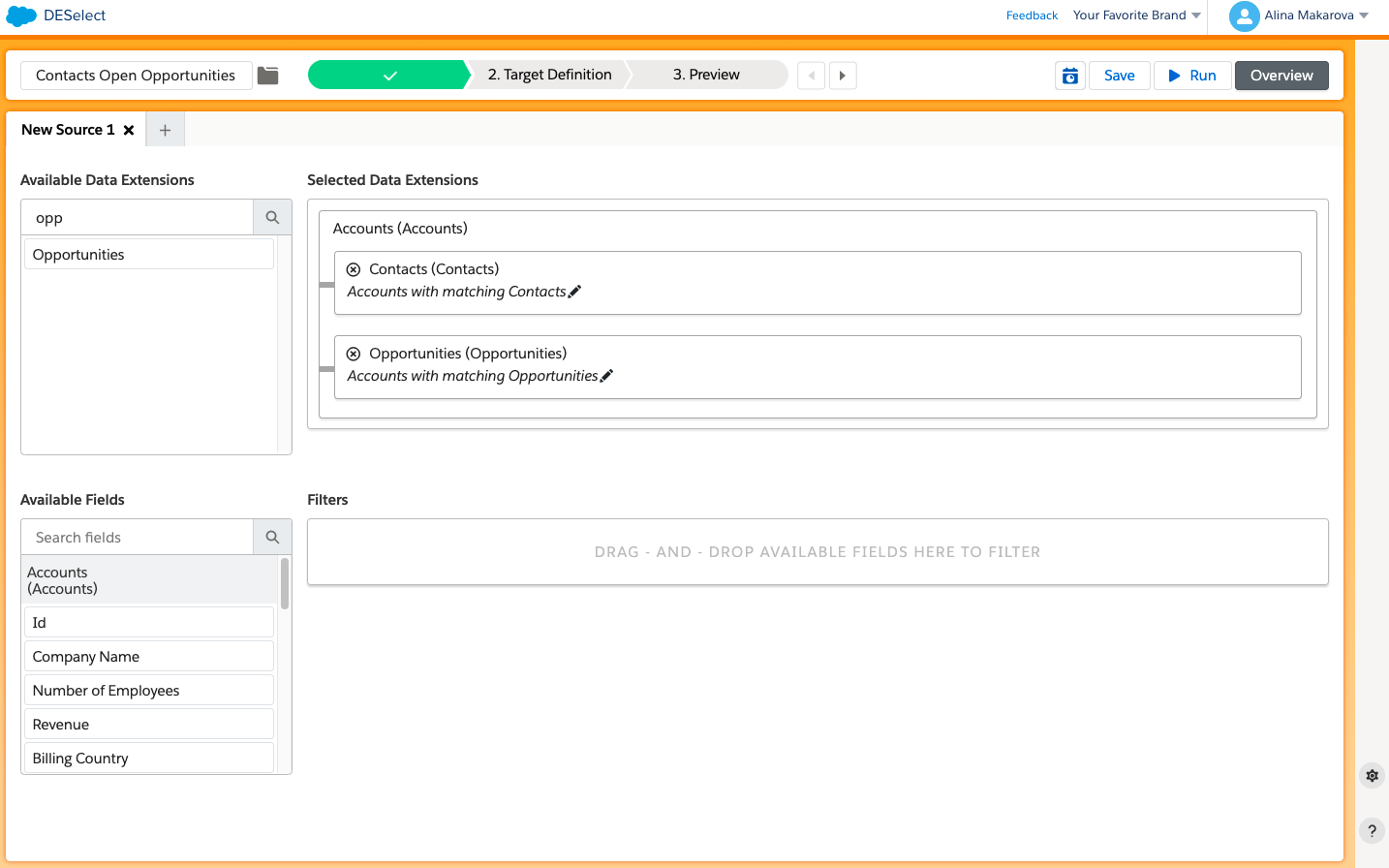
  • Choose the DEs from the available ones from SFMC through drag-and-drop
  • Repeat the same action with the next DE
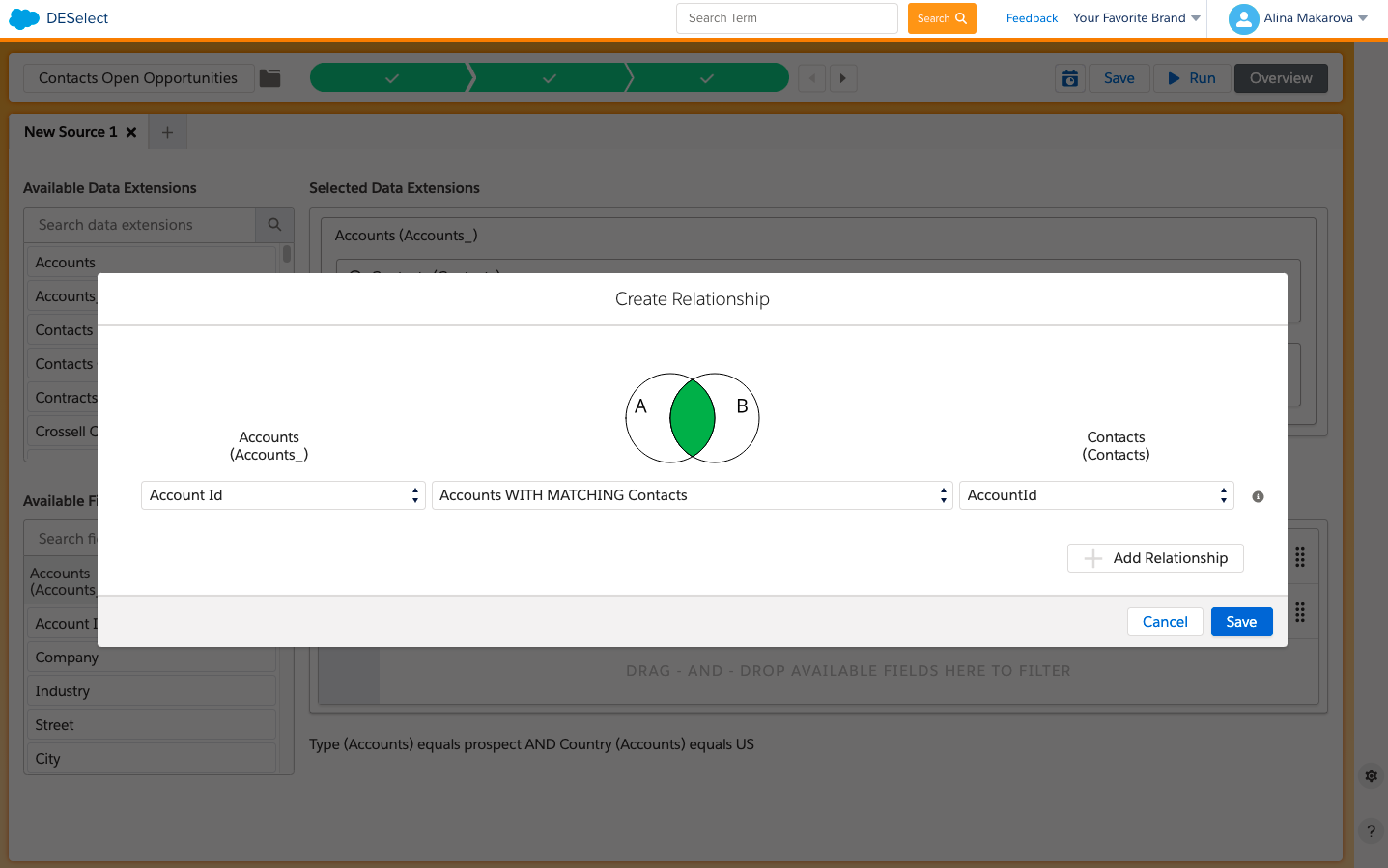
  • Choose the relationship between DEs: with/without matching, with matching, with all matching
Create multiple relations between data extensions in DESelect using drag-and-drop
Create relationships between data extensions in DESelect

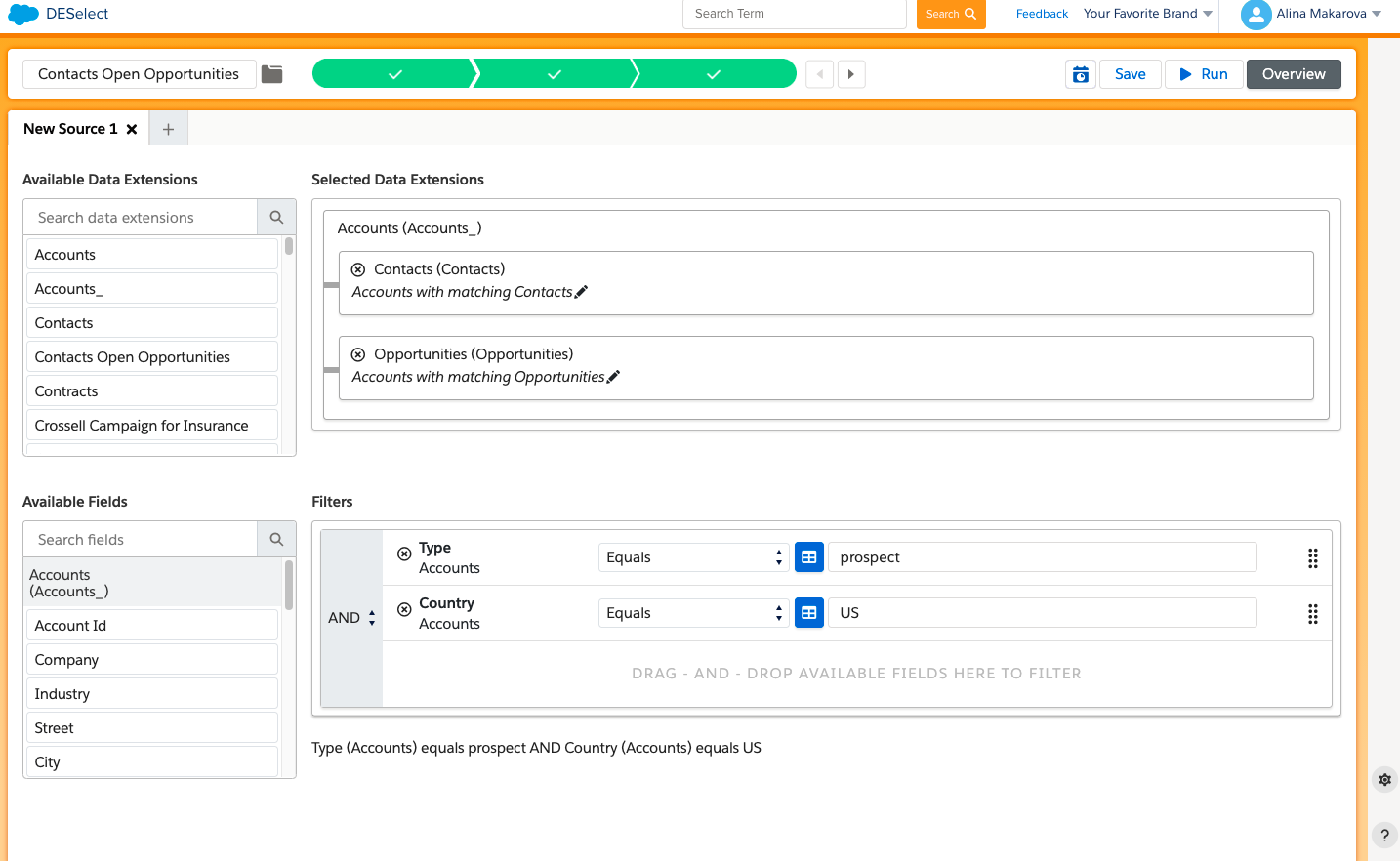
At the bottom, you can see that all the fields from both of your DEs are extracted and placed in the ‘available fields’ section. Now, you can choose to filter on as many fields as you want to. 

  • Drag-and-drop available fields to the right (e.g. for our campaign we need accounts which field ‘Type’ matches the ‘prospect’ criteria, and are coming from the US)
Create new filters in DESelect using advanced segmentation

Step 2. Target Definition

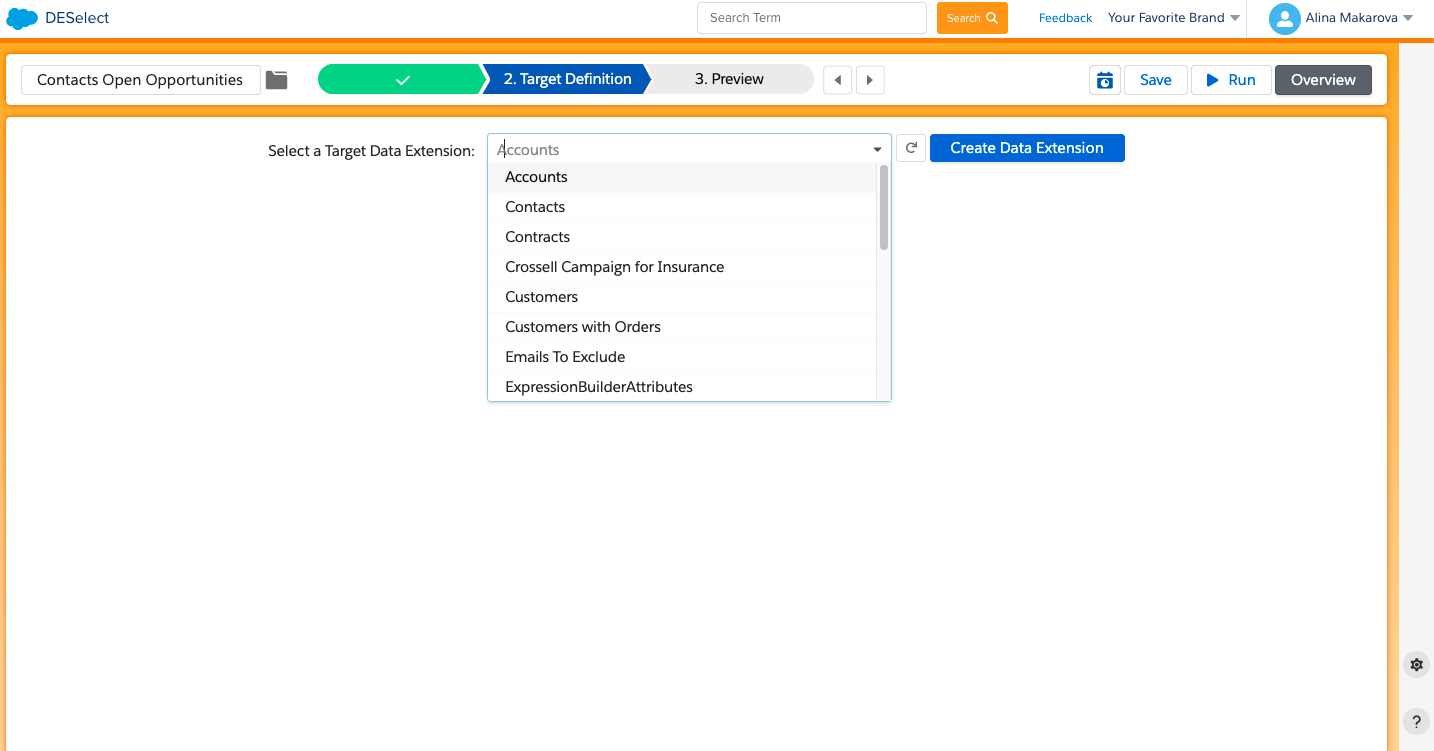
In this step, we need to choose our target DE. There are a few options at this point: we can create a DE on the fly or choose an existing  DE to populate with data from our new selection.

Choose a new target data extension in DESelect for Salesforce Marketing Cloud

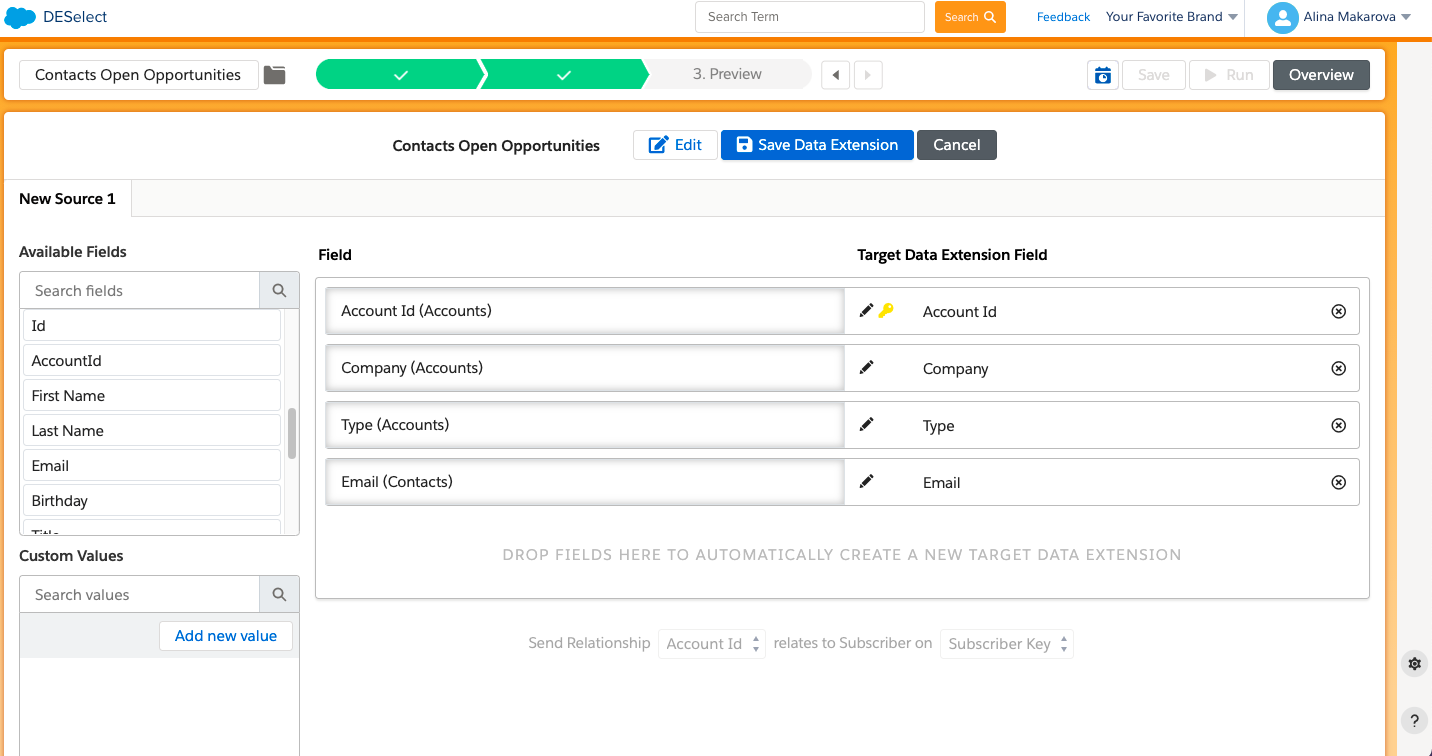
If you want to create a DE in the DESelect environment, you need to choose the fields that you want to have in your target segment. 

  • Drag-and-drop from the available fields on the left to your desired DE on the right (e.g. for this future campaign we need: Account Id, the Name of the Company, Type which equals Prospect, and Email Address)
  • Hit Create a Target DE
Create a new data extension in DESelect for Salesforce Marketing Cloud

Step 3. Preview

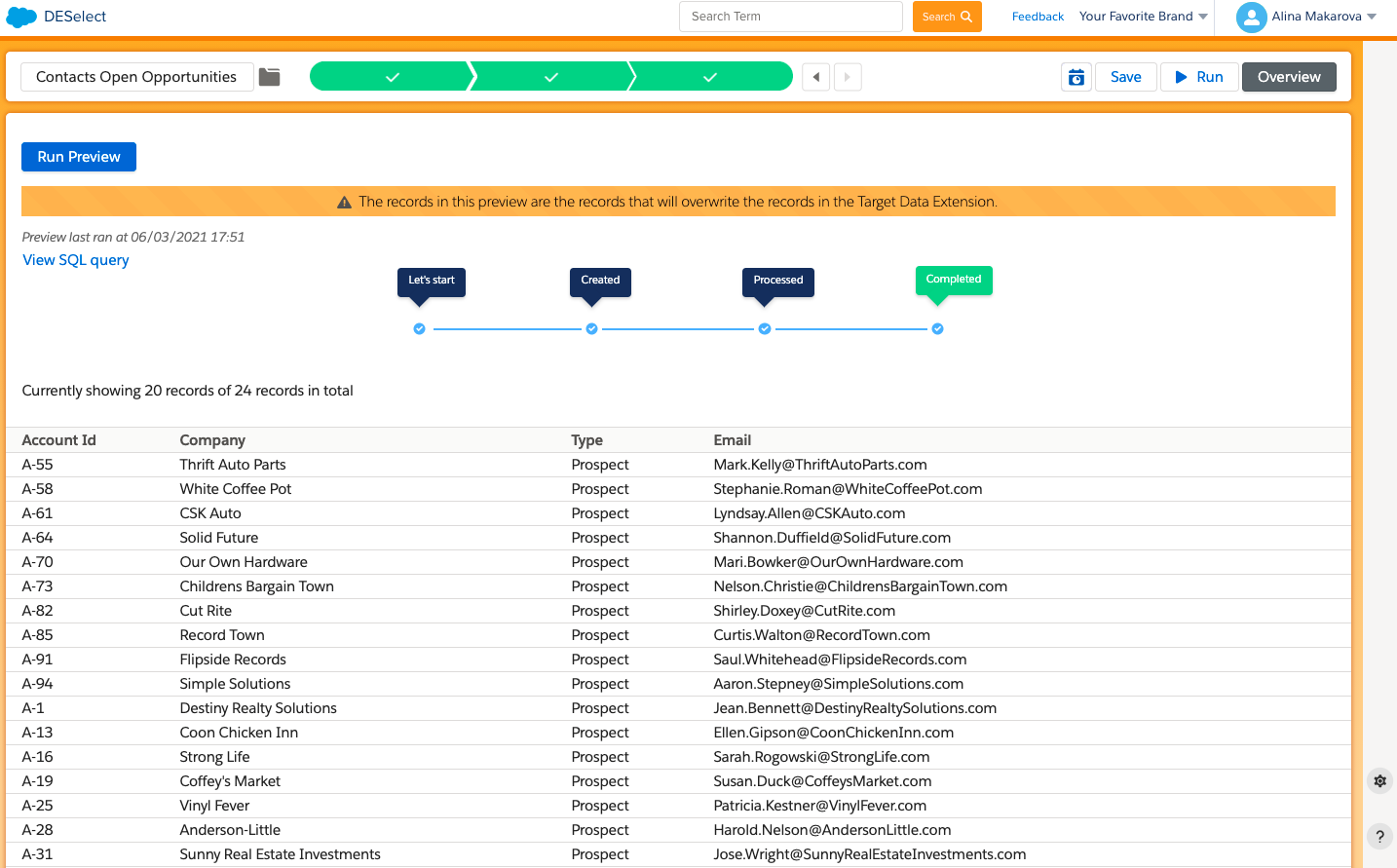
Before saving your new selection, you can preview the resulting data extension and how many records it would contain,  to see if you want to add any changes. 

  • Hit Run Preview
  • Check if the fields are populated correctly
DESelect preview selection screen that you can do inside the app

Once you are happy with the preview, you can run your selection and it will automatically populate the target DE in your SFMC.

No need to learn SQL anymore, enjoy a convenient drag-and-drop interface and save precious time on segmentation using DESelect, book a demo here.

Latest Articles

  • What Is Salesforce Sales Cloud? (And How It Really Works in 2026)

    What Is Salesforce Sales Cloud? (And How It Really Works in 2026) Salesforce Sales Cloud is Salesforce’s flagship CRM platform for managing the entire sales process from tracking leads and contacts through to closing deals and forecasting revenue. At its core, it’s a cloud-based system that brings together Leads, Accounts, Contacts, Opportunities, Activities, and AI-driven […]
  • WhoId and WhatId in Salesforce: Clear Definitions, Examples and SOQL Usage

    WhoId and WhatId in Salesforce: Clear Definitions, Examples and SOQL Usage If you have ever wondered why a Task you created does not appear where you expected it in Salesforce, the answer often comes down to two small fields: WhoId and WhatId. These fields play a crucial role in linking activities to the correct records, […]
  • Salesforce Backup Solutions: Why They Matter, How They Work, And What To Choose

    Salesforce Backup Solutions: Why They Matter, How They Work, And What To Choose Introduction: “Salesforce Already Backs Up My Data… Don’t They?” One of the most common assumptions we hear from businesses using Salesforce is that their data is automatically protected. After all, Salesforce is a massive enterprise platform trusted by millions of organisations worldwide. […]
  • Salesforce Health Cloud Explained: Managing Patient Data at Scale

    Salesforce Health Cloud Explained: Managing Patient Data at Scale Managing patient data across fragmented systems is one of the most persistent challenges facing healthcare providers today. Electronic health records sit in silos. Claims data lives in separate platforms. Patient engagement happens through disconnected channels. The result is a fractured view of the patient that undermines […]

Join our newsletter to receive updates and helpful SFMC guides.

Reach the most targeted
audiences in half the time